• Skip to primary navigation
  • Skip to main content
  • Skip to primary sidebar

Technology blog

Technology Blog

  • Tech Updates
  • SEO
  • Reviews
  • Google
  • Blogging
  • Windows
  • Downloads
  • Earn-Money Online
  • Android

techiefeeds

Three things to do if you are unsuccessful on an Interview

April 22, 2012 by techiefeeds Leave a Comment

If you are unsuccessful, there are three things you need to do soon after the Interview :

1) Learn the Lessons

This is partly about getting feedback and partly about reflecting objectively on what
you feel you did well in the interview, and what you should do differently next time.
The trick here is to focus on practical things you can do differently rather than on
aspects of yourself that you might not be able to change.
Eg. : Resolving ‘I will not be nervous next time’ is unlikely to be helpful as most people are
nervous in interviews.
A better strategy would be to say to yourself, ‘Next time I will remind myself just before
the interview of all the reasons why I am a strong candidate, and I will also do some
breathing exercises to help myself relax’.

2) Ask for feedback

Always, always, always, ask for feedback. You may feel disappointed after you receive
the rejection letter and feel as though you never want to speak to the interviewers again,
but getting feedback can give you invaluable information about the impression you
create in interviews.
Ask for feedback even if you are offered the job. It shows you have a professional
attitude and are always looking to improve. It also helps you to think about ways in
which you might need to get up to speed before you start.
Talk to one of the interview panel – don’t try and have the conversation with a member
of the Human Resources Department who wasn’t present in the interview.

3) Make sure you stay positive

Don’t jump to conclusions
Sometimes after an unsuccessful interview, it is tempting to jump to an unhelpful
conclusion about yourself and why you didn’t get the job:
‘I’m hopeless at interviews’
‘I don’t have the experience employers are looking for’
Think of all the possible explanations
Rather than jumping to an unhelpful conclusion, try to think of all the reasons why you
might have been unsuccessful:
There was another candidate who was exactly what they were looking for
There were five other candidates; the odds were against you anyway
Interviews are a lottery – the panel may have made a bad decision
You didn’t present yourself particularly well at that interview but you learned some
useful lessons for future interviews

TEN TIPS TO TAKE AWAY

1. Remember that the job goes to the candidate who performs best on the
day of the interview: preparation is vital
2. When you’re preparing for the interview, gather ‘intelligence’ in addition
to the information the organisation sends you
3. Rehearse stories and examples that illustrate your strengths
4. Dress to fit in, and make sure you’re comfortable in your clothes
5. Do a ‘dummy run’ of your journey to the interview venue so that you
arrive on time
6. Use breathing exercises to control your nerves
7. When you walk into the interview room smile, make eye contact and
shake hands
8. Sit with a confident posture, then be yourself
9. Ask great questions which sell you
10. Ask for feedback after the interview

You may Also Like :
1) Myths and Reality about Interview
2) Google driver less car
3) Facebook Music chat
4) Download Facebook Albums
5) Tweet Deck for All
Filed Under: Interview [tips]

How to download Facebook photo albums

April 17, 2012 by techiefeeds Leave a Comment

As Orkut started dying, due to the sudden growth of Facebook, Many of users naturally shifted to Facebook, and again when Google introduces their new social network called Google+, most of people including die hard fan of Google [ me too ] shifted. So Google introduced an option to transfer photos from Orkut to Google+.  ( click here to know how). But its quite risky job to download all pictures from your Facebook albums individually, or collecting photos from your friends profile.

Today, we are introducing to you a new simple application. By using such an application, Can download all the photos just by a single click. 
A Facebook application which is in a site ‘facebook2zip.com’ is used for the above purpose. Before going on to the application, logged in to the facebook.

Your Ad here


How to download Facebook Albums? step by step guide.

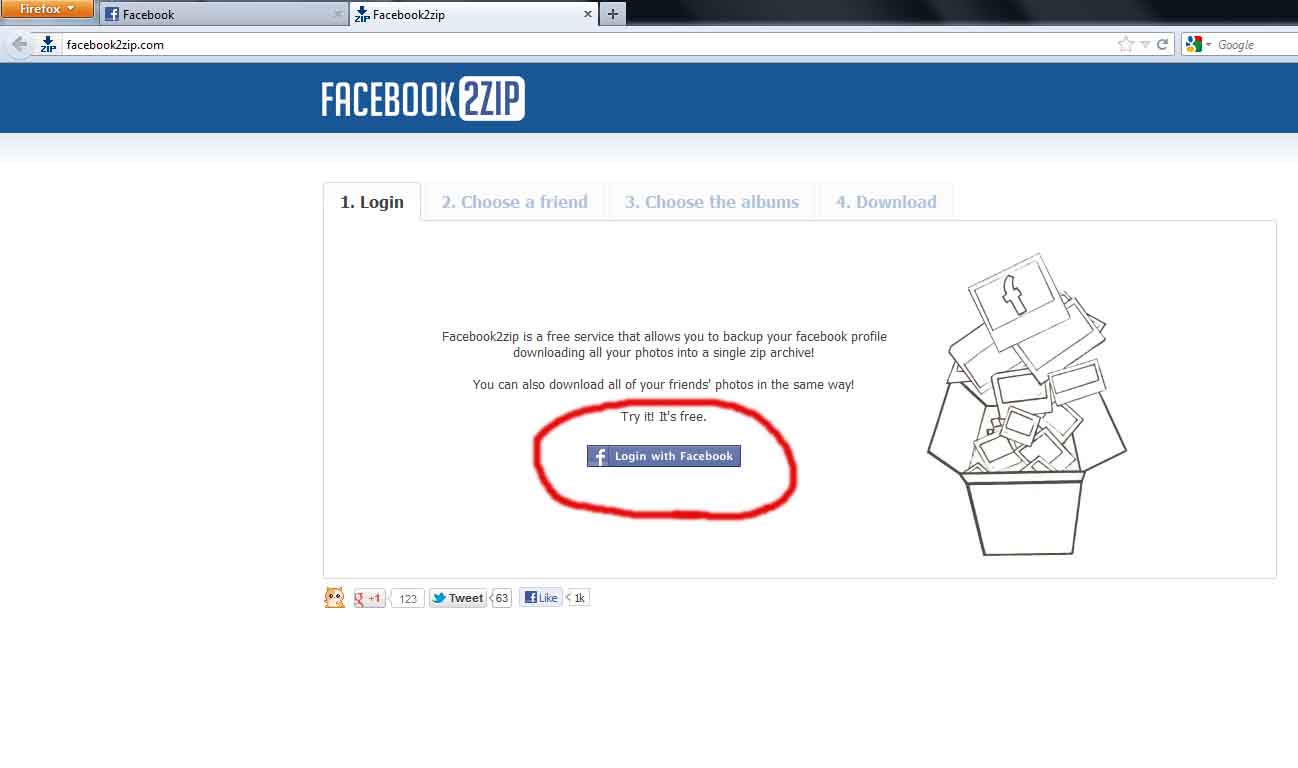
Go to http://www.Facebook2zip.com.
1) Click on the button ‘Login with Facebook‘.
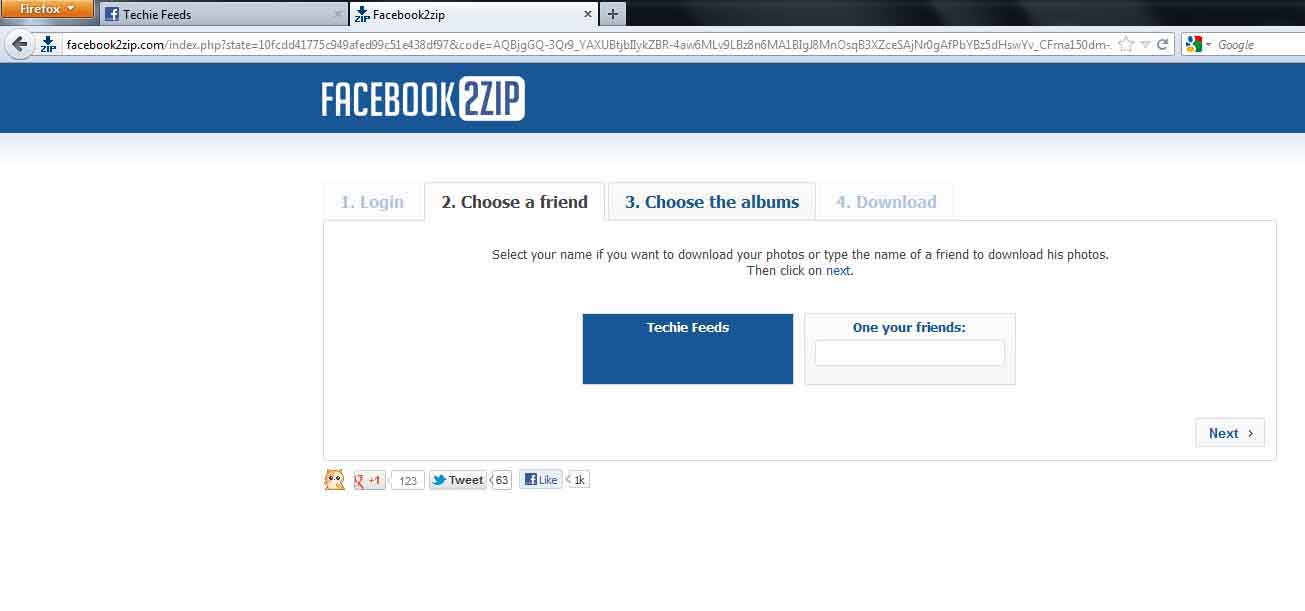
2)  Now Choose a friend on your list, or select yourself. 
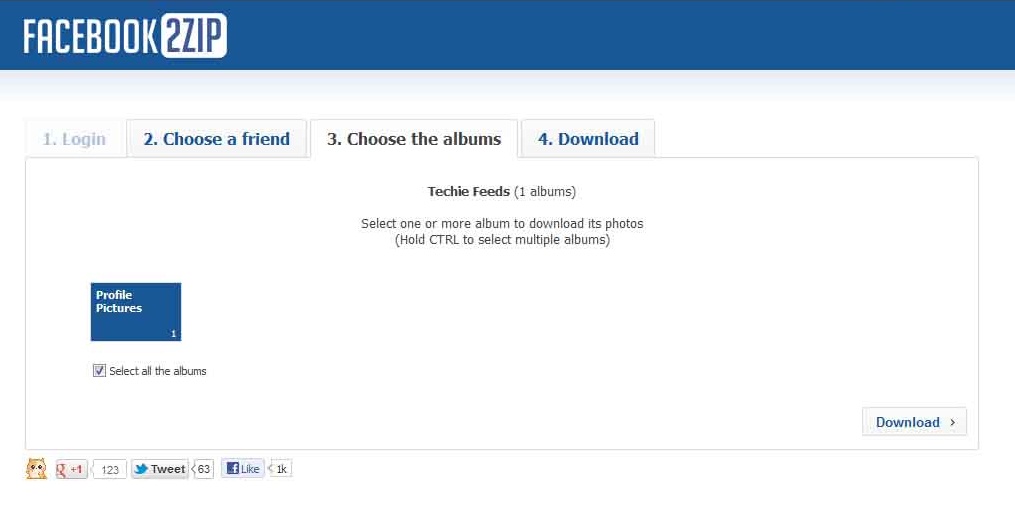
3) The third step is to select the albums you need to download. We selected the profile pictures Album you may have many to download.
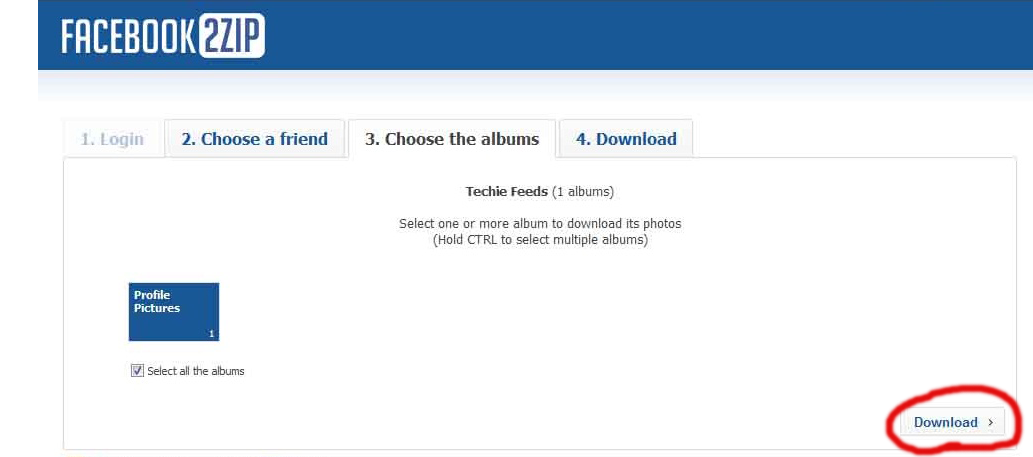
4) Yeah! You are almost done :). Now click on the download button. And select the location on the download window where you need to store the album. ( If no window appeared, the photos may downloaded into c://downloads )
5) The selected albums should be downloaded to your hard disc where to the location selected on the download window.
You are Done 🙂
Thanks for reading our blog.
If you have any doubts, feel free to post it as comment. We value your feedback 🙂
And recommend to your friends via :  Facebook | Twitter
You may Also Like : 
1) Facebook Music chat 
2) Import Orkut photos to Google+
3) Youtube gets  face changed

Filed Under: FaceBook Tips

Build online store with pinnacle cart.

April 13, 2012 by techiefeeds Leave a Comment


                  As we know, The Internet is more popular today. 2/4th of the people on the globe is now accessing internet through their PC or mobile phone and many business deals happens every seconds. Hence Many of business organizations effectively uses internet for promoting and selling their products and services. Many of them attracts more people by their websites, online store etc.

             Pinnacle is the best choice for creating your online shopping cart. It provides free chat support for supporting your clients, shipping support,accepting money from your clients, analytics  and marketing also. You can advertise about your cart just by one click on various social media networks and websites. Pinnacle also offers 100% 14 day free trial for new users without any pre payment.

 Click here for the 14 day free trial. No credit card required.

505651_Pinnacle Cart 728x90 Banner 1

Filed Under: Business

Google introducing Gmail TAP

April 2, 2012 by techiefeeds Leave a Comment


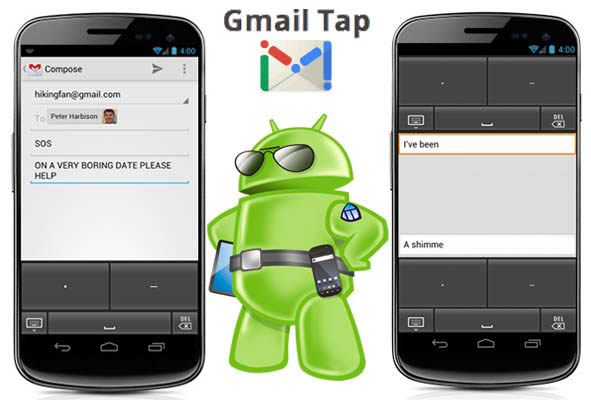
The QWERTY keyboard was invented in 1847 and yet used today, largely unchanged. Are you bored of using this technology? Google introduces a new input method on Android for future, called Gmail TAP. This technology reduces the effort of typing on mobile phones. the 26 characters can be typed using only two keys ( touch screen ) by the combinations of these keys. This makes users type even look into the screen or keypad.

Watch  promoting video.

Learn Gmail TAP.

Gmail TAP is a binary language that uses only two characters dots ( . ) and dash (- ), makes it easy to learn.
A space bar is also provided for easier typing.

A • −                       J • − − −         S • • •                  0 − − − − −
 B − • • •                 K − • −           T −                      1 • − − − −
 C − • − •                L • − • •          U • • −                 2 • • − − −
 D − • •                   M − −            V • • • −               3 • • • − −
 E •                         N − •              W • − −                4 • • • • −
 F • • − •                O − − −            X − • • −             5 • • • • •
 G − − •                  P • − − •          Y − • − −             6 − • • • •
 H • • • •                 Q − − • −         Z − − • •              7 − − • • •
 I • •                        R • − •                                         8 − − − • •
                                                                                   9 − − − − •

DOWNLOAD now for your Android phone.

You may Also Like :
1) Google introduces fully automated Driver less car
2) Schemer – Events for Google
3) Import Orkut photos to Google +
4) Google ‘Let it Snow’ : Rolling out Easter eggs.
5) Music Chat through Facebook – Step by step guide. 

Filed Under: Downloads, Google, Tech Updates

Enjoy music chat with your loved one. Facebook MUSIC

February 19, 2012 by techiefeeds Leave a Comment

  
Music…! No matter in which language it is…!  It’s the language of hearts..! Music have the magical power to unite minds.. of any languages and any culture.! We all like to play music on a car ride with our peoples like, friends, relatives and of course with our loved one.
And, How it should be playing a background music while chatting with friends or loved one? Interesting na?
Today, with Music service on Facebook, there is a new way to listen music.This feature lets you listen music along with any of your friends. You can also listen together while on a group also.

How can I hear music on FaceBook? 

For listening music with you friends, you need to setup the music app on you timeline ( Profile )


1. How to setup MuSiC App on your Timeline?


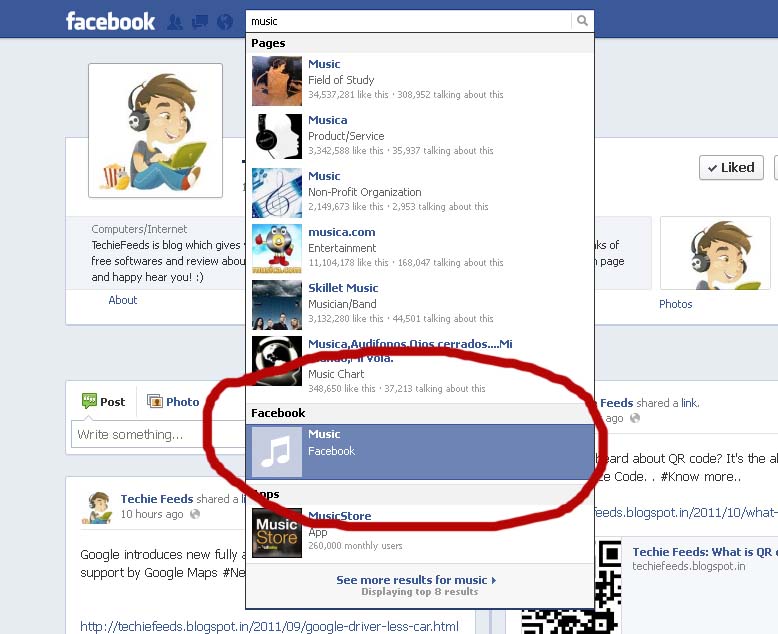
1.Search the word “music”. The first one in the list should be the music app. It can be enabled by clicking ( or providing )required permissions.

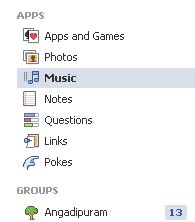
2. Now you can find Music app on app list.

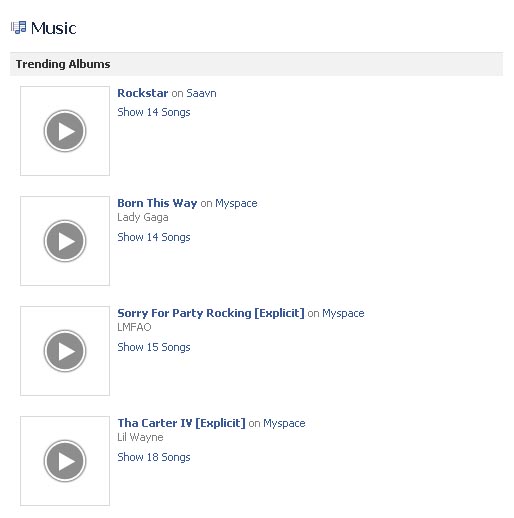
3. The facebook albums will listed on your app. ( Since the Music chat is on beta stage, albums will be from selected languages only.  )


2. To listen music with a friend.

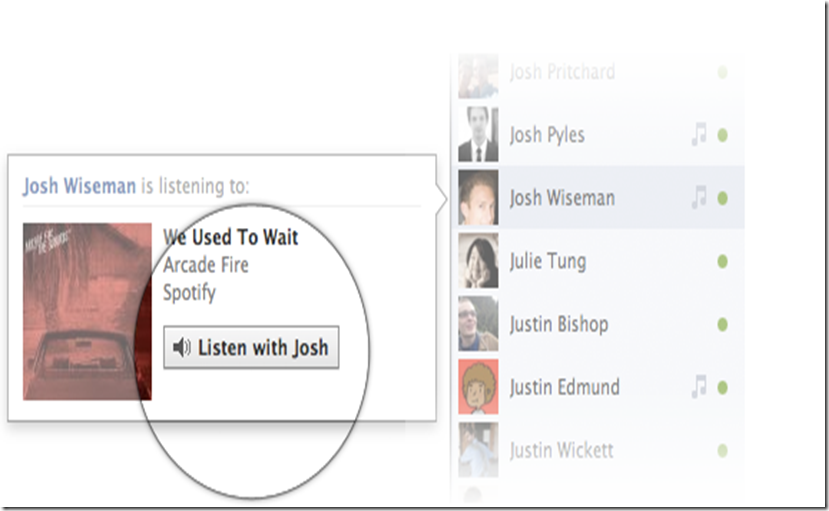
As specified earlier, Music app is not just a music store. You can also listen music with your friends online. For this, your friend must be an user of music app., and his privacy settings must be in favor with facebook music chat policy. The music chat box is just an extension of ordinary search box. Now, If a friend of yours is  hearing music, (using the app.) a musical note will appear on the left side of your chat box. Dragging courser to that area will pop-up a box. click ( as seen in below) and enjoy with your friend. 🙂 


You May also like :

1. Samsung launches Galaxy S2 Duos in China, 2012 can expect a stream of Dual Sim mobiles
2. Firefox – App tabs, Panaroma view, Smart Keywords
3. JXD launches S7100, a gaming Tablet
4. Waiting for Apple TV on this Summer at 32 or 37 inches

Filed Under: FaceBook Tips, Tech Updates

Google “let it snow” :Google rolling out Easter Eggs!

December 19, 2011 by techiefeeds Leave a Comment

 The search gient Google has started rolling out interesting animated Easter egg for 2011 holyday season 🙂
Google is showing an excellent animation of rolling snow, when searching for “let it snow“. Snowflakes will fall from the top of the browser fully covering the search results. The snowflakes can brushed off, drag your mouse over the window ( where the site Google is showing). And the blue ‘Defrost’ button showing instead of search button is used to clear the entair screen.
How to do?
Open your browser, and go to http://google.com/ then search the word “let it snow” in the box and and hit Enter.
you will see adn interesting easter egg (Be updated with latest flasplayer for viewing Egg) from Google.
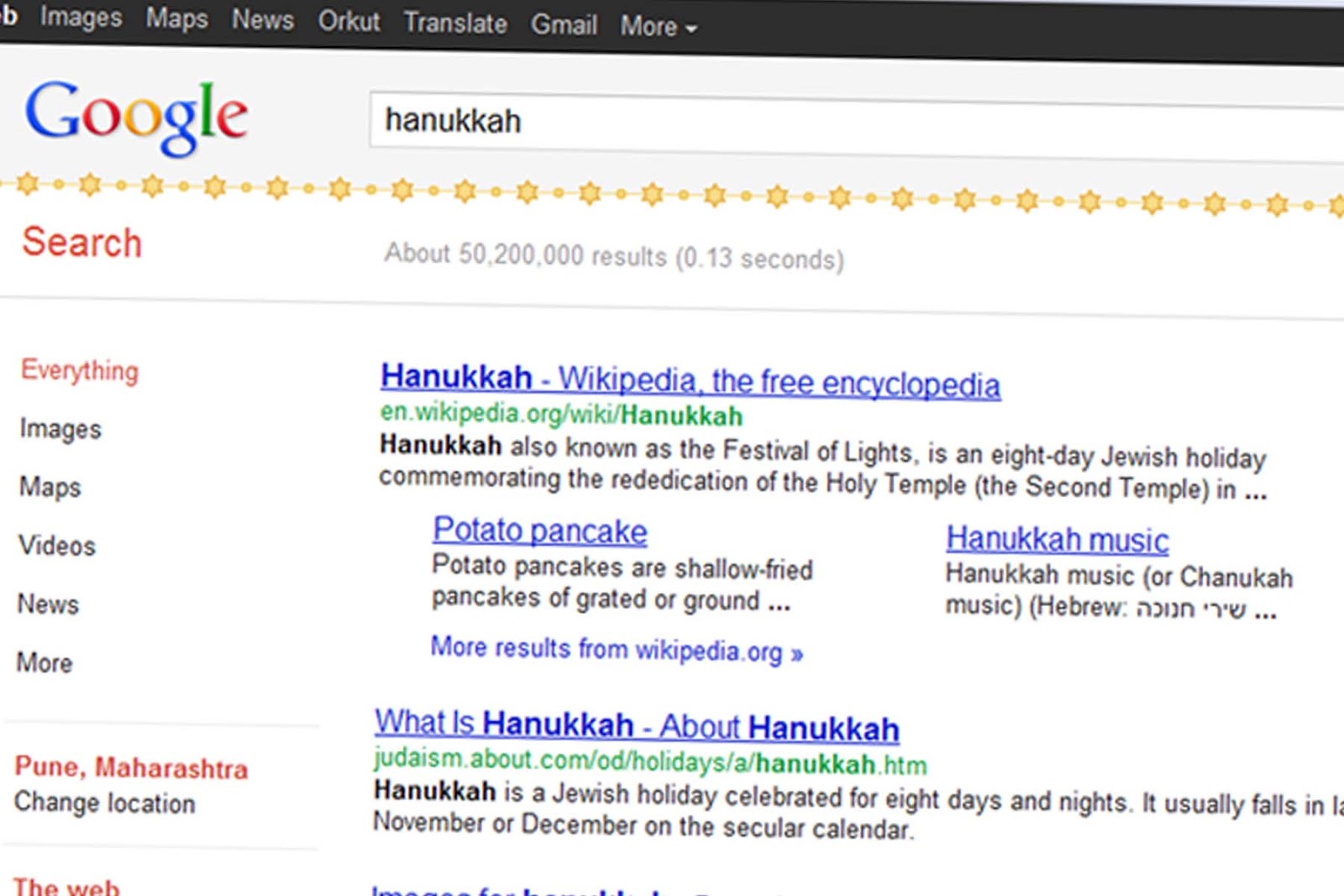
Similarly, the Google search for “Hanukkah” is showing like this 🙂
Be updated with latest flasplayer for viewing Egg. Try it out 🙂

Filed Under: Tech Updates

KeePass : password Safe

November 26, 2011 by techiefeeds Leave a Comment

 Version :  2.17

Download count [appx.]  : 12,000
License : Free [open sourse]
Operating systems :  Microsoft Windows 98, Microsoft Windows ME, Microsoft Windows 2000, Microsoft Windows 98, Microsoft Windows ME, Microsoft Windows XP, Microsoft Windows Vista, Microsoft Windows Server 2003, Microsoft Windows Server 2008, Microsoft Windows 7
Requirements : Microsoft.NET 2.0
File size [appx.] : 2.00 MB 
Downlad link : http://downloads.sourceforge.net/keepass/KeePass-2.17-Setup.exe
Know more    : http://keepass.info/

Filed Under: Downloads, security

123456: The worst password!

November 26, 2011 by techiefeeds Leave a Comment

is your password secured? 123456:the worst password
Password 123456

Now matter, How mach times heard about hacking and easily guessable passwords, Internet users keep using them. And if someone hacked, comments about the holes in security features..Ofsourse it’s your fault when someone easily hacks or guessed your password.

Here is a list of common passwords, and these are the most stolen passwords by hackers. Ofcourse the most common passwords are, ‘123456’,’qwerty’,abcdefg‘ or even name of life partner, lover and child. And also there are same kind of sone passwords, like ‘monkey’, ‘letmein‘, passw()rd, etc…

Anyway here is the full list :
1. password
2. 123456
3. 12345678
4. qwerty
5. abc123
6. monkey
7. 1234567
8. letmein
9. trustno1
10. dragon
11. baseball
12. 111111
13. iloveyou
14. master
15. sunshine
16. ashley
17. bailey
18. passw0rd
19. shadow
20. 123123
21. 654321
22. superman
23. qazwsx
24. michael
25. football

The solution is :

Always use combination of letters, symbols and numbers eg: ‘tech1efeed$143network’  instead ofsuch common passwords.  Don’t worry about remembering long passwords. Use symbols and numbers which will not forgot and also with letters. And always type passwords than automatic login. Ofcourse, due to the continues use, passwords will not forgot.

Don’t spread a common password all over the web. Atleast, use seperate passwords for important services linke banking and E-mail. Beacause there are many poorly protected web foroums [ some are using for hacking too].

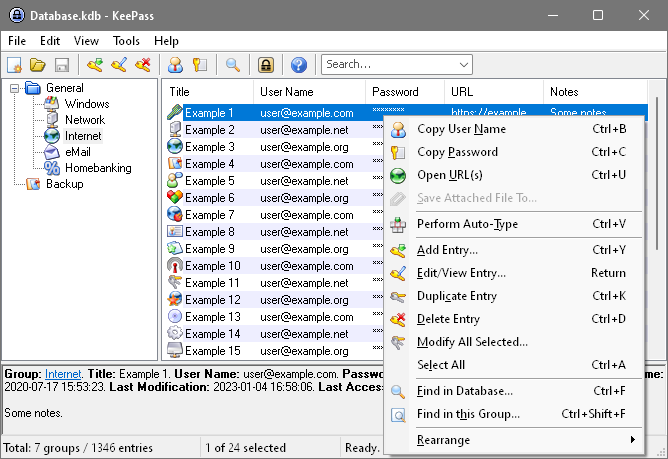
You can also use password manegment softwares like keePass. which can remember your passwords, allows you to use complex, long passwords.

If you follow these, you will be more protected than the person who uses “abc123”.  🙂

Filed Under: security

Convert PC to Internet TV.

November 13, 2011 by techiefeeds Leave a Comment

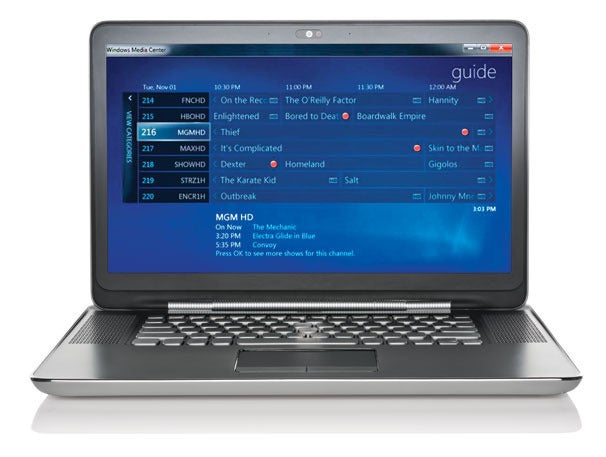
Want to turn your PC into a cable TV or DVR, requires no monthly Fee..and provides limitless storage?  Many of way, we can set up TVchannels on our PC. with internet or via TV tunner cards and cable.
3 ways to setup internet / PC TV.
1) Watch on a website.


   If you have an Internet connection with avg. speed, Its easy and cheapest methode 🙂
Just Googling, can find many websites providing internet TV like Hulu.com. It supports TV channels, Movies online at free of cost. [ Uses streaming technology ]

webiste : http://hulu.com/

2) Using software. 

 There are many softwares available for Internet TV, uses streaming/ downloading technology. for examle,
World Tv Pc <http://www.worldtvpc.com>

3) Cable and Tunner card

Turn your PC into a multi media center!. Can also record your favourite shows.Internal and external models are available. And also both supports remote accessing. Hence you can use your PC as a complete  TV.
Starting from Rs. 1000/-.

  • Pinnacle Internal PCTV PCI Tv Tuner Card – 2350/- Indian Rupee
  • Pinnacle Internal PCTV PCI Pro – 4050/- Indian Rupee
  • Compro Internal PCI TV Tuner Card Price – 1850/- Indian Rupee
  • Intex internal TV tuner with FM – 950/- Indian Rupee
  • Techcom Internal TV Tuner – 1100/- Indian Rupee
  • Pinnacle PCTV PCI (50i) TV Tuner – 2000/- Indian RUpee
  • Snazio TV Pro TV Tuner Card – 1000/- Indian Rupee
  • Avermedia EZ Capture TV Tuner Price – 1950/- Indian Rupee

Filed Under: Downloads, Tech Updates

What is QR code?

October 24, 2011 by techiefeeds Leave a Comment


QR code for my website!

 Did you Ever heard about QR code? Many of you many familiar with the word QR code. It’s the abriviated form of Quick Responce. Actually its a developed form of Barcode. And developed in 1994 in Japan. A QR code code can be defined as a matrix code or two dimentional Barcode. As like a barcode, you can also create your own QR code and also possible to scan and read the code.
You can create your own QR code for your website/webpage/ or even for images. By using a software called, QR code reader, you can read the complete website there. Once you generated  your QR, others can read contents on your QR code easily with a QR code reader, just as a barcode.

How to generate your QR code?
  
You can create your QR code for your website or image from here.
You can also create your code for Facebook profile, Google profile etc…

How to read a QR code?
 There are many free softwares are also available to read the OR codes ( Quick responce code) for compueter and mobile phones.
 For mobile phone, visit http://www.scanlife.com/en/  for the OR code reader. when you run the software, the camera should be turn on and click scan after focusing on the code. If you selected a code for an image, you can see the image on the screen or if you select a url’s code, can read the whole website there 🙂

You can also generate QR code for your Facebook profile, Google profile, etc..

Filed Under: Tech Updates

  • « Go to Previous Page
  • Page 1
  • Interim pages omitted …
  • Page 3
  • Page 4
  • Page 5
  • Page 6
  • Go to Next Page »

Primary Sidebar

Copyright © 2026 TechieFeeds.com